Assessment setup
NEW! Built-in Respondus lockdown browser in assessments
- Decide within each assessment if the lockdown browser will be used
- Allow select URLs to be accessed, if desired
- Chose the degree of security
- Synch grades with your LMS using LTI 1.3
Create an assessment and setting access controls
- Create an Assessment
- Naming and Access Controls
- Set duration Limits
- Set availability Windows
- Create passcodes
- Set attempt Limits
AI Created MC Questions
- Time Savings: Generate a starting point in minutes instead of hours of writing from scratch
- Quality Control: You review every question before it goes to students. AI assists, you decide.
- zyBook Integration: Questions are based on your actual zyBook content, ensuring alignment with what students are learning
- Continuous Improvement: Your usage and feedback make the tool better for everyone
Author multiple-choice questions
- Create the prompt and assign point values
- Choose a question layout: multiple per page or one at a time
- Set the correct answer
NEW! Author short answer questions
- Write the question prompt and enter each answer you will accept as correct
- Choose whether the auto-grader ignores white space, letter case and quotes
- Set the point value for the question
- Add short answer questions to a question pool so students sitting next to each other don’t see the same question
Author zyLabs with our AI tool
- Design instructions for the lab
- Create a model solution
- Create the template students work from
- Create unit tests in select languages
Author zyLabs
- Write instructions for the lab
- Select the programming language and create a starter template
- Create test benches for auto-grading
- Run the test bench against a model solution and the template
Refer to the detailed zyLabs User Guide for more information
Import zyBooks Maintained Labs
- Keep the lab as-is, or “unlock” it to customize the lab
- Select labs from any class zyBook in your library
- Edit any portion of the lab – from basic settings to test benches.
Refer to the detailed zyLabs User Guide for more information
Add zyBooks challenge activities
- Select challenge activities from any active class zyBooks
- Select the level of the challenge activity.
- Preview variants of the activity to assure it matches what you are expecting
Copy questions from other assessments you created
- Save time by importing questions from other assessments you have created
- Select questions form multiple assessments
Create question pools
- Create a pool with your own multiple-choice questions
- Create a zyLabs pool (if enabled in your zyBook)
- Use the test bank to create a question pool from your zyBook
Publish your assessment
- Decide what students will see after submitting the assessment
- Place the assessment where you want students to access it in the zyBook
The student experience
Take the assessment
Students can begin the assessment from your LMS or from inside the zyBook.
- View how many questions and any access or time limits
- Navigate the assessment interface
- Review work
- Submit the assessment
View results as a student
What students see in their results depends on what the instructor chooses to make visible.
- No scores or responses
- Scores only
- Scores + student responses
- Scores, students responses, and solutions
View results/reporting
FAQs
Assessment Setup & Configuration
What types of questions are available in assessments?
Assessments support instructor-created content and zyBooks content imports:
Question pools: Question pools let you add multiple types of instructor-created and zyBooks content alongside each other. Choose how many questions each student sees, and a random set is pulled from the pool for each student.
Instructor-created content:
- Multiple choice questions or question sets (one correct answer)
- Create your own, or use “Generate with AI: Multiple choice questions” to create editable questions based on your zyBook content.
- Short answer questions with text or numeric input
- Programming questions (Advanced zyLabs)
- Create your own, or use “Generate with AI: zyLabs” to create editable programming questions based on your input.
zyBooks content imports:
- Multiple choice test bank questions (one correct answer)
- Randomized challenge activities (various question types, including short answer, multiple-select, pick from list, and code writing)
- Advanced zyLabs (programming questions)
Can I connect this with my LMS (Canvas, Blackboard, etc.)? Can I launch my assessment from there?
Yes. This works with LTI 1.3 and allows grade passback, as well as launching an assessment (in a new tab). Below are some links from our support site to help with setup, or you can set up a one-on-one meeting with our team for further assistance.
Connecting to your LMS
Sign up for assistance with LMS configuration
Is it possible to make an assessment available via LTI launching and not available directly in the zyBook?
Yes! For zyBooks integrated with your LMS via LTI 1.3, Single Sign-On (SSO) is supported for assessment sections. Instructors can link assessment sections to their LMS just as they do for assignments, so students with SSO can launch exams only via LTI and not directly from the zyBook.
How do you manage security when taking exams through zyBooks? Can you use lockdown browsers?
zyBooks assessments include an optional Respondus LockDown Browser integration, built in at no additional cost. No separate Respondus license is needed. Instructors choose which URLs students can open and how strict the security is. Students are prompted to download and install the zyBooks version of LockDown Browser right from the assessment page. When students launch an assessment with LockDown Browser enabled, access to the zyBook and to outside websites and applications is restricted unless the instructor explicitly allows it. Grades sync to your LMS with LTI 1.3 on submission.
Refer to Using LockDown Browser for a zyBooks Assessment for more details.
Instructors who prefer their own lockdown browser can create a quiz in their LMS, add the zyBooks assessment section link to that quiz, and enable their LMS-integrated lockdown browser on the quiz. In that case, instructors need to whitelist domains and applications manually, following guidance from their institution or LMS. Grade passback is generally not supported with this LMS-based configuration.
What is the difference between the Tests tab and the Create Assessment link inside my zyBook?
Most zyBooks include a test bank of multiple choice questions. Instructors can curate test questions into a custom bank in the Tests tab. From there, they can export them as a Word doc or in a file format for use in an LMS, or import them into a zyBooks assessment section.
The Create Assessment feature is available in every chapter of the zyBook. Instructors can import questions from the default test bank directly into an assessment, or import the curated test bank they created in the Tests tab.
How do availability windows and duration limits work together?
They work as a hybrid system. If only an availability window is set, students have until the end of that window to complete the exam. If both an availability window and a duration are set, students can start the exam anytime within the window and will have the full duration to complete it, even if that extends beyond the end of the window.
Can I set different durations for students with accommodations?
Yes. You can set different duration limits for specific students or sections who need extra time. After you set a duration for the “Entire Class,” use “Add another duration limit” to set different durations for individual students or sections on the same assessment.
Can my TA take an assessment outside of the availability window I’ve set for students? Are TAs’ attempts unlimited?
Yes! TAs and instructors can take assessments outside of student availability windows and bypass submission limits to make multiple attempts as needed. This lets TAs test assessments in advance while keeping the timing restrictions you’ve set for your students.
Can I print an assessment for students?
No. Assessments are designed for online delivery with interactive content and auto-grading. For printed tests, use the Tests tab of the zyBook, which lets you export multiple choice test bank questions in a printable format.
Is there a way to set visibility for all assessments at once?
Not at this time. Visibility is handled individually on each assessment, and there is no global setting for assessment controls.
What happens if I change the exam duration while students are actively taking it?
Changing the duration affects only future attempts, not attempts already in progress. There is no option to extend time on an attempt that is already in progress.
Can I re-grade an assessment if I made an error in a question or answer?
You can manually adjust scores for individual students on specific questions from the assessment results page. There is currently no bulk re-grading option, so you will need to update each student’s score individually for any question with errors.
Can I adjust points after students have completed an exam?
Points possible on a question are set once the first student launches the assessment. Manual grading adjustments can be made after attempts are completed, but only up to the maximum total points possible for each question.
Student Experience & Attempts
Do students have access to the entire zyBook while taking an assessment?
Assessments launch from the zyBook into a separate exams tab, so students have “open book” access to the book unless the optional LockDown Browser integration is enabled.
When an assessment is launched with LockDown Browser enabled, students cannot access any websites or applications, including the zyBook, so the default is a closed-book experience. To allow an open-book experience, instructors can whitelist learn.zybooks.com and include a link to the book in the exam.
What options are available for controlling access to tools like ChatGPT during exams?
Lockdown browsers and proctoring software help prevent students from accessing applications, websites, or devices that the instructor has not approved.
For programming questions, use Student Behavior Insights on the Assessments dashboard to spot outlier patterns. View summary analytics such as high paste percentage or lower-than-average time spent, then open the detailed programming history to replay keystroke-for-keystroke coding, right from the dashboard.
What happens if a student closes their browser or loses internet connection during an exam?
The platform automatically saves a student’s answer when they move away from a question. If a student loses internet connection during an assessment, a notification at the top of the page tells them there is a connection error and to pause work until it is restored.
If a student loses connection or exits the exam during an attempt, the duration timer keeps running, but they can relaunch directly into their attempt with the “Resume assessment” button on the assessment section, as long as time remains. When time runs out, the attempt is submitted automatically on the student’s behalf.
Does each new attempt clear the student’s previous work?
Yes. Work on each attempt is isolated and does not carry over, so students start fresh with every attempt. All attempt activity is recorded, so instructors can view student activity data from all attempts. Students can also view their attempt data if the instructor chooses to make it visible.
Can students change their answers during the exam?
Yes. As long as the student is within the allowed duration limit and/or availability window and hasn’t submitted their attempt, they can change their answers.
Can students receive partial credit on a question? How is partial credit handled?
Yes. Some challenge activities and programming questions can result in partial credit. If a student earns a fractional score, it is recorded and reported as a decimal.
Which score is used when students make multiple attempts?
The highest, most recent score from all attempts is used for reporting and grade passback. When viewing student results, the attempt being reported is marked with a star icon.
Can students see solutions after completing the assessment?
That is controlled by instructor permissions. Instructors can show just the score; the score plus each student’s submissions; or the score, submissions, and solutions for each question. This setting can be updated at any time, even after students have taken the exam, and takes effect immediately.
Will students receive a Google Captcha popup on programming questions during exams?
Students should not encounter security prompts or popups when working on labs or challenge activities during exams. If students report unexpected interruptions, please contact zyBooks support with details about the course, assignment, and testing environment so we can investigate.
Question Types & Content
Can I select exercise questions from the book in addition to challenge activities for assessments?
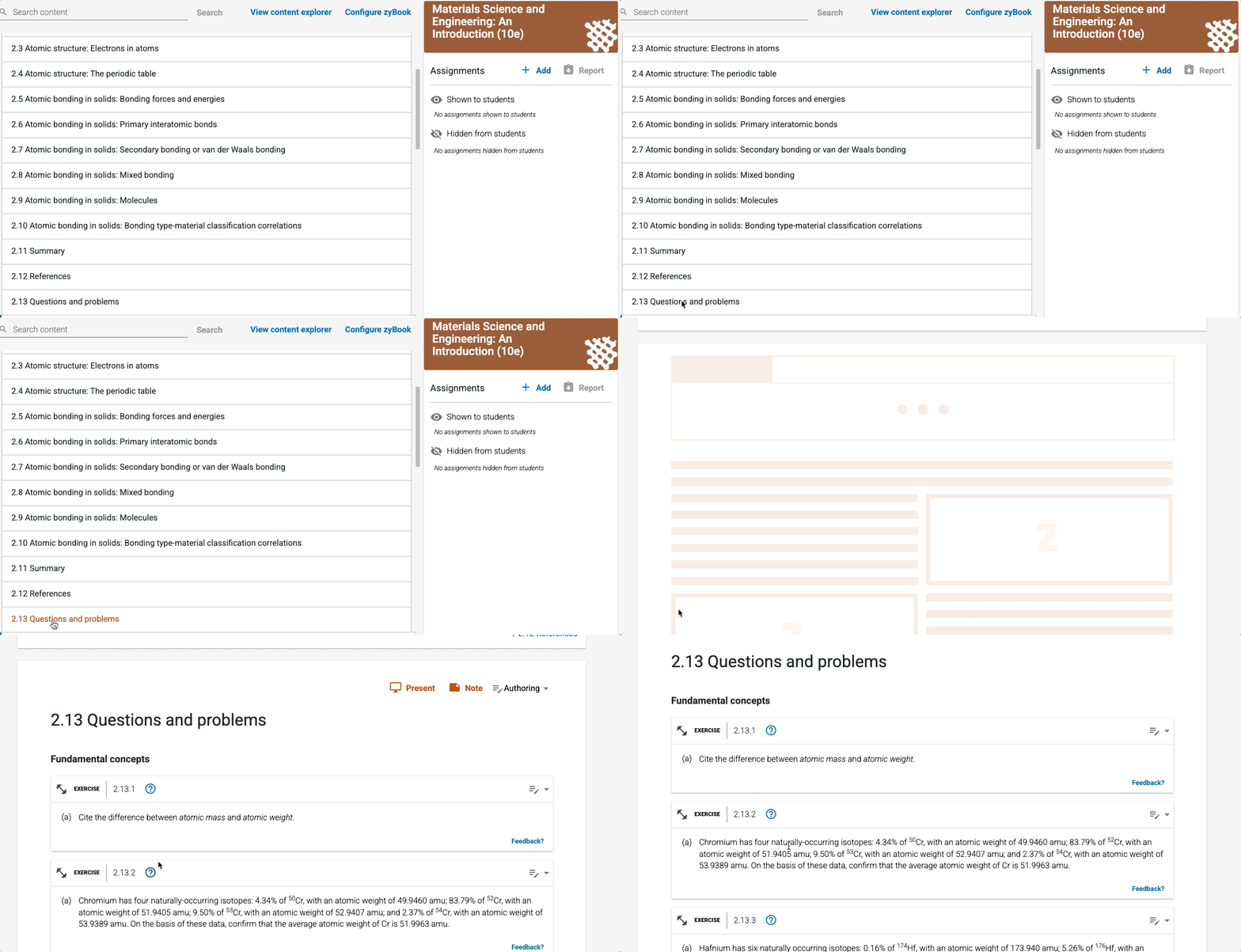
No. Exercises are a type of non-interactive content available in some books, usually at the end of a section or in a separate section at the end of a chapter. Exercises are not auto-graded, and some don’t have solutions. They are not available to import into assessments, but test banks, Advanced zyLabs, and most challenge activities are.
Can I combine test bank questions from different chapters into one assessment?
Yes. You can mix questions from different chapters within a test bank or assessment.
Are instructors able to create their own challenge activities?
No. Instructors cannot create their own challenge activities. Instructors can create multiple choice questions (one correct answer), short answer questions, and programming questions.
Can I import multiple choice questions from external sources?
No. Only multiple choice test bank questions from zyBooks can be imported into assessments. Instructors can copy and paste question content from external sources into a multiple choice question in a zyBooks assessment.
What are test cases in the context of zyLabs?
Test cases are used in programming assignments to automatically verify student code. The “Generate with AI” tool in zyLabs can draft unit tests in select languages. You can also create manual test cases in zyLabs and even set points to 0 for practice. See the manual grading section of the zyLabs user guide.